LINGLINK CUSTOMER SUPPORT
Help starts only when you say so.
LingQi Assistant lets LingLink help with setup, installation, troubleshooting, and technical work through LingQi and the AI agent—inside one support session that you start and can stop.
Downloading, installing, or keeping the app on your computer does not let LingLink see your screen, files, or computer.

VERSION 1.0.0
Choose your computer
Official LingLink preview downloads for a supervised customer support pilot. No account is required.
macOS
Universal build for Apple silicon and Intel Macs. Requires macOS 13 or later. 3,903,817 bytes.
Download for Mac↓SHA-256
c3fac3e988b4c59c3f9827a417b96da7d4383e36193c13373580ef1dbb763e85Windows
Native 64-bit app for Windows 10 and Windows 11. 10,419,712 bytes.
Download for Windows↓SHA-256
a084431b77ee320bc09c8d8b75c1bd40cd0372875f318e85f7ff84d7b3a45e71Preview notice: This release is not yet Apple-notarized or Windows Authenticode-signed, so your computer may show a first-launch security warning. Verify the SHA-256 value above if needed.
CUSTOMER WALKTHROUGH
From download to ending support, follow these six steps
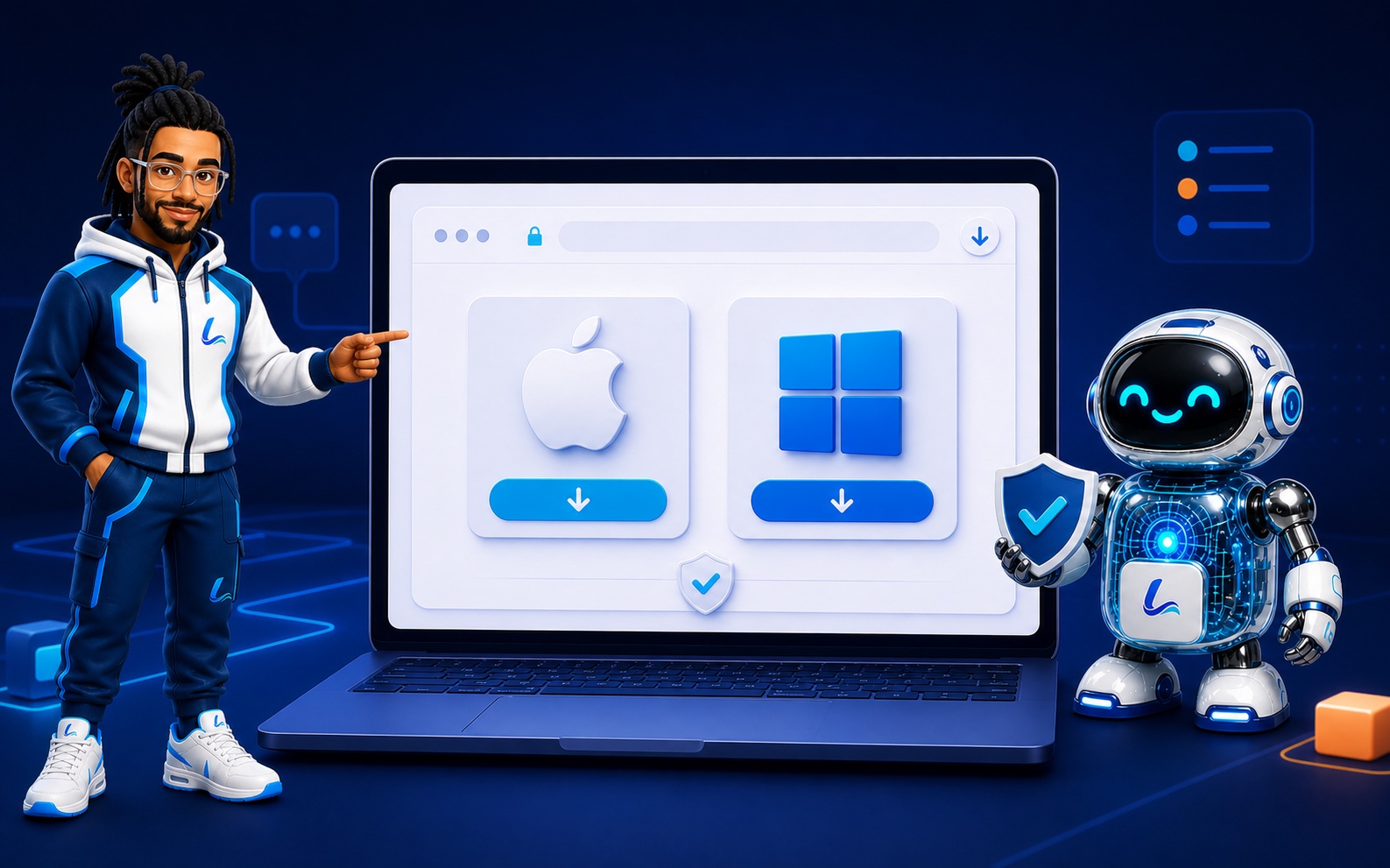
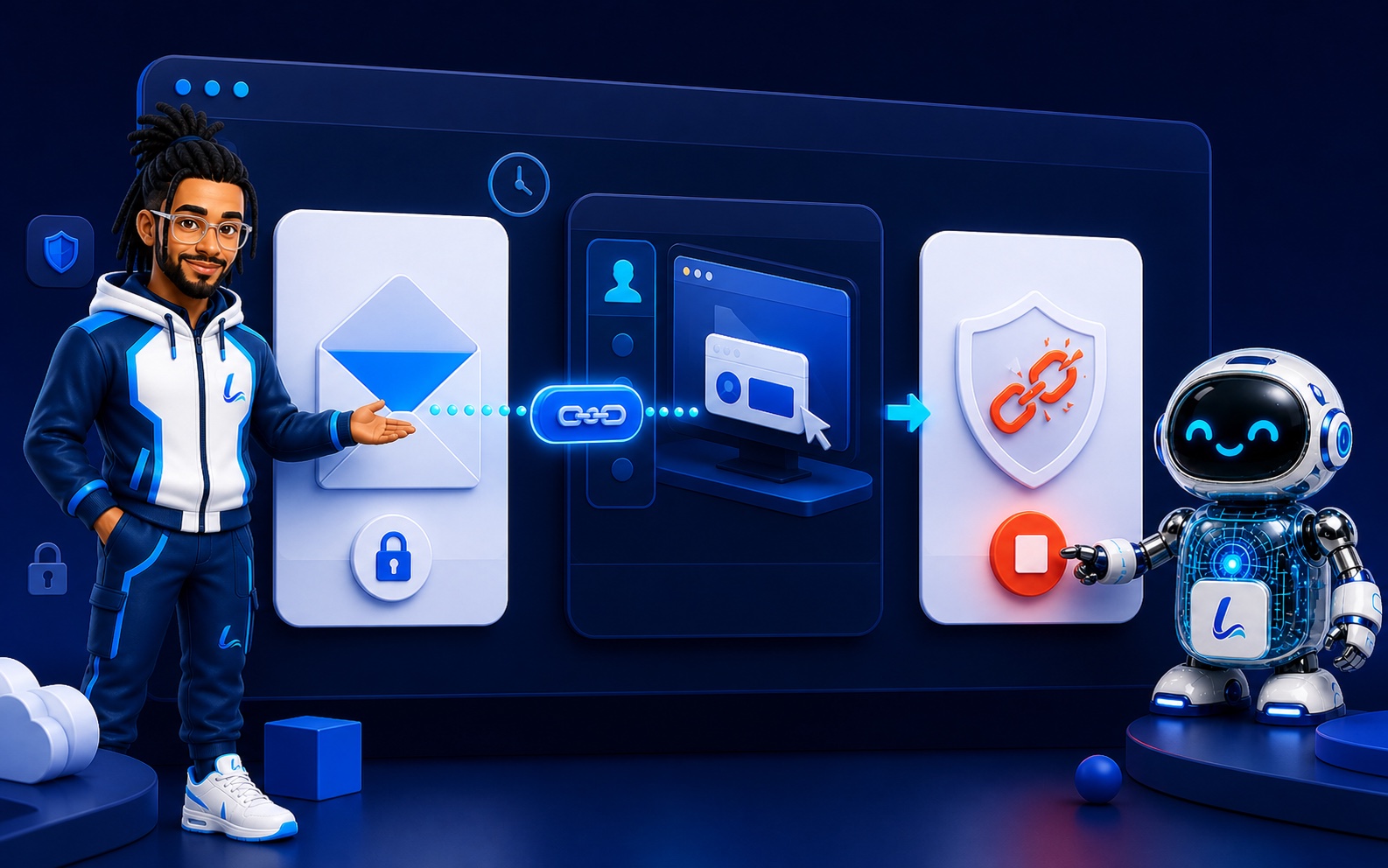
Use only this official page. The pictures are visual guides, not screenshots; the button names below match the current v1.0.0 app.
-
1Choose the correct download
Select Mac or Windows on this page only. Check that the address is linglinkai.cn and that the filename and SHA-256 match the values above.
Optional: verify the file yourself
Mac
shasum -a 256 ~/Downloads/LingQi-Assistant-macOS-Universal-v1.0.0.dmgWindows PowerShell
Get-FileHash "$HOME\Downloads\LingQi-Assistant-Windows-x64-v1.0.0.exe" -Algorithm SHA256 -
2Install and open without disabling security
Mac: open the DMG, drag the app to Applications, and try once. If blocked, use System Settings → Privacy & Security → Open Anyway for this exact file. Windows: open the EXE; after checking its name and hash, use More info → Run anyway if SmartScreen appears. Never disable Gatekeeper or SmartScreen.

-
3Review and allow this session
Only while speaking with the representative you contacted, select “Allow all & create private link.” This makes screen, controls, and tools available only for this support session. On Mac, review and approve the separate Screen Recording and Accessibility prompts, then return to LingQi.
Stop if anything is different: Do not continue if you did not start the support request, the representative is unknown, or anyone asks you to turn off security.
-
4Share the fresh link privately
Use “Copy private link” and send it only to the named LingLink representative you contacted. Never post it in a group or public page. The link expires after 30 minutes and works once.
-
5Stay and supervise
LingQi shows when support connects and records session activity. Watch the work. If a request or action is unexpected, select “Stop access now” immediately. LingLink will never need your password or verification code.
-
6Stop and confirm access is removed
Select “Stop access now,” confirm that LingQi shows “Access has been removed” or that the support session ended, then close the app. Any future support visit requires you to create and share a new link.
Customer safety: If anyone contacts you unexpectedly, asks you to disable security, requests a password or verification code, or asks you to post the private link publicly, stop. Close LingQi Assistant and contact LingLink through the official linglinkai.cn website.
WHAT STAYS PRIVATE
Your computer remains yours.
- ✓No access from downloading or installing
- ✓No hidden background service
- ✓No automatic access to your files
- ✓The customer app cannot access LingLink systems, accounts, or files
- ✓Passwords, secure sign-in, and administrator approval remain protected
- ✓Every normal support visit needs a fresh link from you